The TESS Replacement Built for How Examiners Actually Search
When the USPTO retired TESS (Trademark Electronic Search System) in November 2023, trademark attorneys lost more than a search engine.
 By Howard Katzenberg
Founder, GleanMark
Updated October 11, 2026
When the USPTO retired TESS (Trademark Electronic Search System) in November 2023, trademark attorneys lost more than a search engine. They lost the only tool that matched how examining attorneys actually work — and no adequate TESS replacement existed. The structured queries built step by step, combined with boolean logic, documented in an auditable session log: all of it was gone.
Every keyword search tool on the market — Corsearch, CompuMark, Saegis, even the USPTO's current TSDR — offers the same thing: type a term, apply some filters, get a flat list. That's useful for quick lookups. But it's not how examiners search, and it's not how clearance attorneys document their methodology.
GleanMark's TESS Search brings back the workflow that TESS provided — rebuilt from the ground up, running against the full 14 million USPTO trademark records.
What Made TESS Different
TESS wasn't a keyword search tool. It was a structured search workbench. Here's what made it unique:
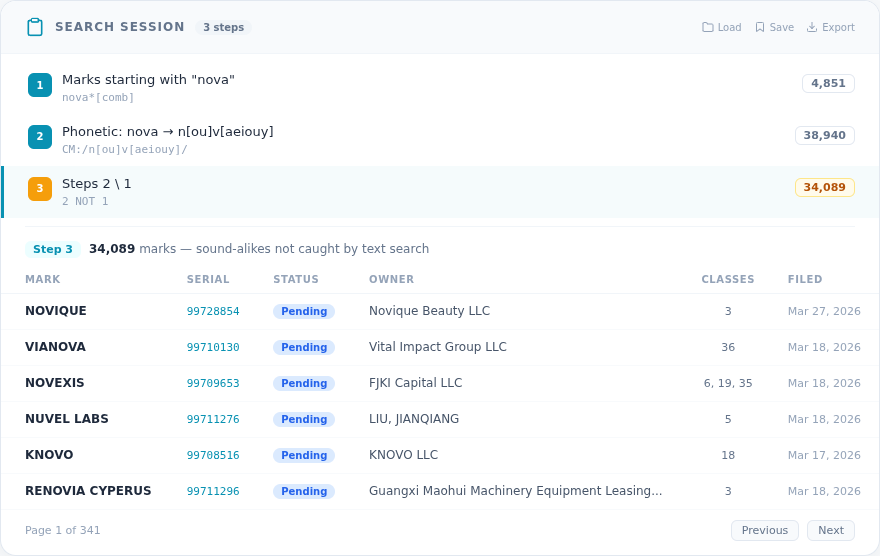
Numbered steps. Every search you ran became a numbered step in a session log. Step 1 might be a broad mark name search. Step 2 might be a phonetic expansion. Step 3 might narrow by Nice class.
Set operations. You could combine steps with AND (intersection), OR (union), or NOT (difference). 1 AND 3 gave you the overlap between two result sets. (3 6) AND 8 let you build compound expressions with parentheses — implicit OR for grouped step numbers, just like X-Search.
The X-Search Summary. The session log wasn't just a convenience feature. It was the standard format attached to every trademark prosecution file. When an examining attorney documented their search, they produced an X-Search Summary showing numbered steps, TESS query syntax, result counts, and set operations. Attorneys who conducted clearance searches relied on this same format for decades.
Field code syntax. TESS used a specific query language — field codes like [comb] for combined mark, [ic] for International Class, [on] for owner name. These weren't arbitrary; they mapped directly to the structured fields in the USPTO database. Experienced searchers could type raw queries like *aurora*[comb] AND "028"[ic] AND NOT dead[ld] and get precisely what they needed.
When TESS went offline, all of this disappeared. No alternative offered the same structured, step-by-step workflow. (For background on how the search landscape has evolved, see Trademark Search Strategy: Beyond TESS.)
Why We Built TESS Search
We analyzed 217,000 real X-Search documents from USPTO prosecution files. The pattern was clear: examining attorneys don't use keyword search. They build layered queries — starting broad, narrowing with filters, expanding with phonetic patterns, then combining results with set operations to build a comprehensive, documented search record.
GleanMark's TESS Search replicates this entire workflow. Every search is a numbered step. Every step shows a human-readable description and raw TESS-style query syntax. You can combine steps with AND, OR, and NOT — including compound expressions with parentheses. The session log builds exactly the way an X-Search Summary does.
How It Works: A Complete Walkthrough
Let's walk through a real clearance search for the mark NOVA in Class 009 (electronics). This session demonstrates the examiner pattern: text search, phonetic expansion, class filtering, intersection, and subtraction.
Step 1: Text Search — nova*[comb] AND NOT dead[ld]
Start with a prefix search for marks beginning with NOVA, filtered to live marks only.
Result: 2,001 marks
| Serial | Mark | Owner | Status |
|---|---|---|---|
| 99725264 | NOVACORE | Jian Kang Yi Jia (Shanghai) Technology Co., Ltd | Live |
| 99719808 | NOVAFLUX | Pan,Li | Live |
| 99711403 | NOVARTA | NovArta Corp. | Live |
This catches every mark that starts with "NOVA" — NOVACORE, NOVAFLUX, NOVARTA, NOVALINK, and hundreds more. But it misses marks that sound like NOVA without spelling it that way.
Step 2: Phonetic Expansion — CM:/n[ou]v[aeiouy]/
Click the Phonetic button to generate character class patterns. For NOVA, the system produces n[ou]v[aeiouy] — grouping similar-sounding vowels so the search catches NUVA, NOVO, NOVI, NOVE, and other sound-alikes that an examining attorney would flag.
Result: 15,030 marks
| Serial | Mark | Owner | Status |
|---|---|---|---|
| 99547593 | NUVA | Provenance Blockchain Labs, Inc. | Live |
| 99024688 | NOVO | TRANSOM POST OPCO, LLC | Live |
| 97694428 | NOVI | NOVI SPACE, INC. | Registered |
The phonetic step is dramatically broader — 15,030 results vs. 2,001 from text. That's because it catches every mark with a NOVA-like sound pattern, regardless of exact spelling.
Step 3: Class Filter — "009"[ic] AND NOT dead[ld]
Now search for all live marks in International Class 009 (electronics, software, computers).
Result: 594,618 marks
| Serial | Mark | Owner | Status |
|---|---|---|---|
| 99663711 | NOVA | Dragonfly Minds LLC | Live |
| 99655478 | NOVALINK | NOVALINK TECHNOLOGIES LLC | Live |
| 99649306 | NOVARE | Greenway Health, LLC | Live |
This is a large set on its own. The power comes from intersecting it with the mark searches.
Step 4: Intersect Text + Class — 1 AND 3
Combine Step 1 (NOVA* text matches) with Step 3 (Class 009) to find NOVA-prefix marks specifically in electronics.
Result: 304 marks
| Serial | Mark | Owner | Status |
|---|---|---|---|
| 99684141 | NOVA KEYS | Walter Novosel | Live |
| 99681403 | NOVA & BYTE | A2 Publishing | Live |
| 99663711 | NOVA | Dragonfly Minds LLC | Live |
From 2,001 NOVA marks down to 304 in your specific class. This is the core text-based conflict set.
Step 5: Intersect Phonetic + Class — 2 AND 3
Now combine Step 2 (phonetic NOVA sound-alikes) with Step 3 (Class 009).
Result: 2,101 marks
| Serial | Mark | Owner | Status |
|---|---|---|---|
| 99547593 | NUVA | Provenance Blockchain Labs, Inc. | Live |
| 99684141 | NOVA KEYS | Walter Novosel | Live |
| 97694428 | NOVI | NOVI SPACE, INC. | Registered |
This set includes everything from Step 4 plus the sound-alikes in Class 009.
Step 6: Isolate Sound-Alikes — 5 NOT 4
Here's where set operations shine. Subtract Step 4 from Step 5 to isolate the marks that only phonetic search found — the ones text search missed entirely.
Result: 1,797 marks
| Serial | Mark | Owner | Status |
|---|---|---|---|
| 99547593 | NUVA | Provenance Blockchain Labs, Inc. | Live |
| 99024688 | NOVO | TRANSOM POST OPCO, LLC | Live |
| 97911724 | NOVE | JAKE OH | Registered |
These 1,797 marks — NUVA, NOVO, NOVI, NOVE, and hundreds more — are potential conflicts that a simple text search for "NOVA" would never find. This is exactly why examiners use phonetic expansion, and exactly why a structured search tool matters.
The Complete Field Code Reference
GleanMark's TESS Search supports 18 field codes — the same structured query language that TESS used. You can enter these in Query Mode or let the form generate them automatically.
Mark Fields
| Code | Description | Example |
|---|---|---|
[comb] | Mark contains | *aurora*[comb] |
[comb:word] | Exact word match | dura[comb:word] |
[fm] | Full mark (exact) | DURA[fm] |
Owner & Goods
| Code | Description | Example |
|---|---|---|
[on] | Owner name | "APPLE INC."[on] |
[gs] | Goods & services | "clothing"[gs] |
Classification
| Code | Description | Example |
|---|---|---|
[ic] | International class | "028"[ic] or ("009" "042")[ic] |
[cc] | Coordinated classes | "006"[cc] |
[us] | US subclasses | ("A" "B" "200")[us] |
[dc] | Design codes | 261713[dc] |
Numbers & Dates
| Code | Description | Example |
|---|---|---|
[sn] | Serial number | 98915985[sn] |
[rn] | Registration number | 5678901[rn] |
[fd] | Filing date range | 2023-01-01:2024-12-31[fd] |
[rd] | Registration date range | *:2023-12-31[rd] |
Filters
| Code | Description | Example |
|---|---|---|
[ld] | Live/Dead status | NOT dead[ld] |
[st] | Standard characters | standard[st] |
[rg] | Register type | "supplemental"[rg] |
[md] | Mark type | word[md] |
[cb] | Filing basis | 1b[cb] or (1a 1b)[cb] |
All clauses are AND'd together by default. Use * for open-ended date ranges (e.g., 2023-01-01:*[fd]). Group multiple values in parentheses for OR within a single field. For OR across different criteria, use set operations.
Phonetic Expansion: How It Works
Phonetic expansion is one of the most powerful features examiners use — and one of the hardest to replicate. The idea is simple: find marks that sound like yours, regardless of how they're spelled.
The system uses six character class substitution rules derived from real USPTO examining attorney search patterns:
- [ckqx] — Hard consonants that sound alike: C, K, Q, X
- [scz] — Sibilants: S, C, Z
- [gj] — Soft consonants: G, J
- [ou] — Round vowels: O, U
- [td] — Dental consonants: T, D
- [aeiouy] — All vowels (including Y)
For the mark GORILLA, the system generates [gj][ou]r[aeiouy]l[aeiouy] — catching JORILLA, GURILLA, GORELLA, and dozens of other phonetic variants. Click the Phonetic button next to the mark name field and the pattern is generated automatically.
Saving and Loading Sessions
Your in-progress session persists in browser memory while the tab is open. But for permanent storage, click Save in the session log header to name your session and store it to your account.
Saved sessions store the methodology — your search parameters and step structure — not the raw result data. When you load a saved session, every search step is re-executed against the current database, so your results are always fresh. This means you can save a clearance search methodology today and re-run it six months later against updated USPTO data.
Load sessions from the Load button in the session log header. You'll see all your saved sessions with step counts and dates.
Who It's For
Prosecution associates — Build the same structured search sessions you did in TESS. Document your methodology in the session log, ready for the file.
Clearance attorneys — Run examiner-grade searches as the foundation of a clearance opinion. Combine mark name, phonetic, and class-filtered steps to build a comprehensive record.
IP paralegals — Search exactly the way the examining attorney will. Identify potential conflicts before filing and document your methodology for attorney review.
Getting Started
- Enter a mark name — type a mark with optional wildcards (e.g.,
ZEBRA*) - Add filters — Nice classes, Goods & Services keywords, date ranges, design codes
- Click Search — each search becomes a numbered step in your session log
- Combine steps — use AND, OR, and NOT to narrow, expand, or compare result sets
TESS Search is available on Professional plans and above. For the complete interactive reference with examples of every feature, see the TESS Search User Guide.
For quick pre-filing clearance, try a knockout search — it runs 8 examiner-style search steps automatically in under 5 seconds. To monitor marks after filing, set up automated watch alerts. And if you receive an office action, the AI drafting tool can research cited marks and generate a response draft.